
MacBook Pro 16-inch (2019) with T2 chip: reviving it and running Debian 13 next to macOS
Summary
My 16-inch MacBook Pro from 2019 stayed black until I reflashed its T2 chip from a Linux machine with idevicerestore. Afterwards macOS on 99 GB and Debian 13 with an encrypted disk, T2 kernel, fan control, Wi-Fi and Bluetooth ran side by side. This post describes every step with all commands and files, so you can bring such a device to the same state.
A gift with a black screen
I got the MacBook Pro from Dirk, my boss at the time. It is the 16-inch model from 2019 (model number A2141, internally MacBookPro16,1) with an Intel Core i7-9750H, 16 GB RAM, a 512 GB SSD, an AMD Radeon Pro 5300M and an Apple T2 chip. One day it seemed completely dead: black screen, no startup chime, no Apple logo and no reaction at all, whatever key I pressed.
The usual steps did not help. Original power adapter connected, SMC reset (Mac off, hold right Shift, left Option and left Control for 7 seconds, then add the power button for another 7 seconds), no change. So I wanted to open the case. The bottom plate is held by pentalobe screws (P5); I had no matching bit and first had to order a precision bit set (affiliate link: if you buy something, I get a small commission and the price does not change for you). Then I disconnected the battery connector from the logic board, waited and plugged it back in. With the device open anyway, I cleaned the fans and heat sink fins with an electric air blower (affiliate link). The Mac still stayed black.
Takeaway: A black screen on a T2 Mac does not mean the logic board is dead. Often only the firmware of the T2 chip is damaged, and it can be restored, even without a second Mac.
Key combinations at a glance
These are the keys you need along the way. They belong to the Mac firmware and therefore also work with the built-in keyboard when no operating system is running yet.
| What | Keys | What for |
|---|---|---|
| Reset the SMC | Mac off. Hold right Shift + left Option (⌥) + left Control for 7 s, then add the power button for another 7 s. Release, wait a few seconds, switch on normally. | power and fan problems, Mac does not respond |
| Force shutdown | Hold the power button for about 10 s. | before every DFU attempt |
| DFU mode of the T2 | Cable in the DFU port. Press and hold the power button, immediately add right Shift + left Option + left Control, hold all four for about 3 s. Variant: power button 1 s, then add the three, hold all of them for about 8 s. | restoring the T2 firmware; the screen stays black |
| Internet Recovery | At power-on hold Option + Command (⌘) + R until a globe appears. | reinstall macOS on an empty SSD |
| macOS Recovery | At power-on hold Command + R. | Startup Security Utility, Disk Utility |
| Boot picker | At power-on hold Option. | choose between macOS, Debian ("EFI Boot") and USB stick |
| GRUB menu | Escape during the short timeout; e on an entry to edit, F10 to boot. | change kernel parameters once, choose an older kernel |
| Boot screen | Escape during boot. | see all boot messages as text |
What the Mac reveals over USB
The T2 chip is a small computer of its own inside the Mac. It starts first, checks the firmware and only then releases the Intel processor. Its operating system is called bridgeOS. If it is broken, the Mac stays black. With the Mac connected via USB-C to a Linux machine, lsusb shows the state of the T2:
05ac:1670"Macintosh", class Billboard: the USB-C controller has power, the T2 does not respond. That is how it looked for me at first.05ac:1227: DFU mode. From here firmware can be loaded.05ac:1281: recovery mode of the T2.05ac:12ac: restore mode, while the firmware is being written.05ac:8600"Apple T2 Controller": normal operation.
Takeaway: Billboard is a good sign. The Mac gets power and responds. If it stays at Billboard even after many DFU attempts, a hardware fault is more likely.
Putting the T2 into DFU mode
Apple only describes reviving a T2 Mac with a second Mac and the Finder. The key sequence for DFU mode is the same, though, and a Linux machine can do the rest. This is what worked for me:
- A USB-C cable that carries data, directly between the Linux machine and the Mac. On the Mac it must be in the DFU port: Apple lists it per model in its guide to the DFU port. On the 2019 16-inch model it is on the left side, the port that is on the right when you look at that side. The power adapter goes into a port on the right side of the Mac.
- Switch the Mac off completely: hold the power button for about 10 seconds, then wait 5 seconds.
- Press and hold the power button, immediately add right Shift, left Option and left Control. Hold all four keys for about 3 seconds, then release. If that does not work: press only the power button for 1 second first, then add the other three and hold all of them for about 8 seconds.
- The screen stays black. Only
lsusbwith05ac:1227tells you whether it worked.
It took me several attempts. A USB hub between the Mac and the Linux machine did not get in the way in the end, DFU mode still came through.
Restoring bridgeOS with idevicerestore
On Linux, idevicerestore from the libimobiledevice project takes over the role of the Finder. It recognises the T2 as iBridge2,14 (j152fap), downloads the matching bridgeOS version from Apple, has Apple's server sign it for exactly this chip and installs it. With -l it takes the latest version; without -e it is a revive that leaves the data on the SSD alone, with -e a full restore that erases everything.
The first attempt with the package from Debian 13 failed: "Unknown command received from ASR". The Debian version dates from July 2024 and does not know the newer ASR command "Initiate" used by bridgeOS 11. A current version from the Git repository fixes that. This is how you build it on a Debian 13 machine. I ran the same steps in a container and then copied the finished programs to the machine:
sudo apt install build-essential autoconf automake libtool-bin pkg-config git \
  libssl-dev libcurl4-openssl-dev libzip-dev zlib1g-dev libusb-1.0-0-dev libreadline-dev python3 usbmuxd
mkdir -p ~/src && cd ~/src
for r in libplist libimobiledevice-glue libusbmuxd libtatsu libimobiledevice libirecovery idevicerestore; do
  git clone --depth 1 https://github.com/libimobiledevice/$r.git
  (cd $r && ./autogen.sh --prefix=/opt/idevicerestore --without-cython && make -j"$(nproc)" && sudo make install)
done
Run it directly on the machine the Mac is connected to, with its own libraries:
cd /var/tmp
sudo LD_LIBRARY_PATH=/opt/idevicerestore/lib /opt/idevicerestore/bin/idevicerestore -l -y      # revive, data stays
sudo LD_LIBRARY_PATH=/opt/idevicerestore/lib /opt/idevicerestore/bin/idevicerestore -l -e -y   # restore, SSD is erased
I ran into two pitfalls along the way. First, do not run it in a Docker container: the T2 switches its USB mode several times during the process, and the host's usbmuxd recreates its socket each time. The container then hangs on the old socket and waits forever for "restore mode". The message "most likely image personalization failed" is misleading here.
Second, the revive was not enough. It wrote the firmware but stopped at 96 % with "failed to mount data partition after invert": the data partition of the T2 was damaged. Only the restore with -e completed, with "Restore Finished". After that the T2 showed up as 05ac:8600, and the Mac showed the folder with a question mark when switched on. That is good news here: the firmware runs and looks for a startup volume, the SSD is just empty.
Takeaway: Try the revive first, it leaves your data alone. If it fails at the data partition, only the restore helps. Important data on the SSD is then lost, but without a working T2 you cannot get to it anyway.
Installing macOS and allowing Linux to boot
macOS comes back through Internet Recovery: switch on and immediately hold Option, Command and R until a globe appears. Choose Wi-Fi, format the SSD as APFS in Disk Utility and install macOS.
Create a local user with administrator rights while doing so, this matters. Only the Startup Security Utility can allow other operating systems to boot, and it requires an administrator of the installed macOS to log in. In a first attempt I had already erased macOS, and all I got was "No administrator found".
Then boot into recovery with Command and R, open the Startup Security Utility under Utilities and change two settings:
- Secure Boot: "No Security"
- Allowed Boot Media: "Allow booting from external or removable media"
Keep macOS afterwards, even if you hardly use it. Firmware updates for the T2 and EFI only come with macOS updates, and without macOS you can no longer reach the startup security settings.
Making room: macOS on 99 GB
A fresh macOS used about 25 GB. I left it 99 GB so updates have enough room and created a placeholder for Debian with the rest. This works in the running macOS from the Terminal, even with FileVault switched on. diskutil list shows the identifier of the APFS container, for me it was disk0s2:
diskutil list
diskutil apfs resizeContainer disk0s2 limits          # minimum and recommended size
sudo diskutil apfs resizeContainer disk0s2 99g FAT32 DEBIAN 0
It took ten seconds; macOS checks the file system first. Afterwards there were three partitions: the EFI partition (314.6 MB), macOS (99 GB) and "DEBIAN" (401 GB, FAT32). On Linux they are nvme0n1p1 to nvme0n1p3.
Rescuing the Wi-Fi firmware from macOS
The Wi-Fi and Bluetooth chip is a Broadcom BCM4364. Its firmware is not part of Debian; Apple only ships it with macOS, in /usr/share/firmware. You have to save these files while macOS is still running. Without them there is no Wi-Fi on Linux.
# in macOS
tar -cf ~/macos-firmware-raw.tar -C /usr/share firmware
Linux expects different file names, for example brcmfmac4364b3-pcie.apple,bali-HRPN-u-7.7-X3.txcap_blob. The script firmware.sh from the t2linux wiki takes care of that with the subcommand rename_only on any Linux machine with Python 3. I ran exactly this Python part of the script directly; the result is the same:
mkdir roh && tar -xf macos-firmware-raw.tar -C roh
bash firmware.sh rename_only roh/firmware firmware.tar
mkdir linux && tar -xf firmware.tar -C linux     # 148 files with Linux names
The 148 files go onto a USB stick. The Debian installer does ask for missing firmware and is supposed to find it in a folder firmware/ on a FAT32 stick. For me that did not work, neither from the Ventoy stick (its data partition is exFAT, which the installer cannot read) nor from a second stick with FAT32. The reliable way: finish installing Debian without Wi-Fi and copy the files to the right place by hand after the first boot. With the stick plugged in, for example at /media/$USER/STICK:
sudo cp /media/$USER/STICK/firmware/* /lib/firmware/brcm/
sudo modprobe -r brcmfmac_wcc brcmfmac && sudo modprobe brcmfmac
sudo journalctl -k --grep=brcmfmac     # shows which firmware was loaded
Wi-Fi then appears as wlp5s0 and can be connected as usual via NetworkManager. The files survive kernel updates.
Installing Debian 13
For the installation you need a USB keyboard and a USB mouse. The built-in keyboard and the trackpad are attached to the T2 and only work with the right kernel. The DVD image installs without a network connection; Wi-Fi only becomes available once the firmware has been copied after the installation.
- Switch the Mac off completely, plug in the installation stick.
- Switch on and hold Option until the boot picker appears. Choose the orange entry "EFI Boot".
- Skip the question about missing firmware and the network setup.
- Partition manually or into the free space only. Delete the "DEBIAN" partition and use the space for Debian. Do not touch the macOS APFS partition.
This is what I ended up with: a separate EFI partition for Debian (953 MB), /boot with ext4 and a LUKS-encrypted partition with btrfs for /. The macOS EFI partition stayed untouched. Holding Option at power-on then offers macOS and "EFI Boot" (Debian); without the key, GRUB starts.
According to the t2linux wiki, the GRUB installation sometimes fails with older installer images. Then press e in the boot menu of the stick, append efi=noruntime to the line starting with linux and boot with F10. With the 13.0 image I did not need that.
Package sources and T2 kernel
After installing from DVD, my /etc/apt/sources.list contained no package sources, only the commented-out DVD entry. So add the sources first, then update:
deb http://deb.debian.org/debian trixie main contrib non-free non-free-firmware
deb http://deb.debian.org/debian trixie-updates main contrib non-free non-free-firmware
deb http://security.debian.org/debian-security trixie-security main contrib non-free non-free-firmware
sudo apt update && sudo apt full-upgradeThe kernel for T2 Macs is available from the t2-ubuntu-repo by Aditya Garg, also for Debian 13 (codename trixie). It brings the drivers for keyboard, trackpad, Touch Bar, audio and the SMC:
sudo apt install -y curl
curl -s --compressed "https://adityagarg8.github.io/t2-ubuntu-repo/KEY.gpg" | gpg --dearmor | sudo tee /etc/apt/trusted.gpg.d/t2-ubuntu-repo.gpg >/dev/null
sudo curl -s --compressed -o /etc/apt/sources.list.d/t2.list "https://adityagarg8.github.io/t2-ubuntu-repo/t2.list"
CODENAME=trixie
echo "deb [signed-by=/etc/apt/trusted.gpg.d/t2-ubuntu-repo.gpg] https://github.com/AdityaGarg8/t2-ubuntu-repo/releases/download/${CODENAME} ./" | sudo tee -a /etc/apt/sources.list.d/t2.list
sudo apt update
sudo apt install linux-t2 apple-t2-audio-config t2fanrd tiny-dfr t2-touchid fprintd libpam-fprintd
fprintd and libpam-fprintd are listed because the t2-touchid package otherwise fails during setup: its script restarts fprintd but does not depend on the package. Do not additionally install packages such as apple-bce or applesmc-t2; the kernel already contains these drivers.
A word on trustworthy software: the T2 kernel does not come from Debian but from a community project, and it runs with full privileges. So check the key before adding it: gpg --show-keys /etc/apt/trusted.gpg.d/t2-ubuntu-repo.gpg must show the fingerprint 9F98 73A5 66A7 3E27 CFF0 294F E2E4 9611 4ACD BFD4 of Aditya Garg. The same applies to scripts from the internet such as firmware.sh: read first, then run, and only download from the original source. bridgeOS is different: the firmware comes from Apple, is signed for exactly this chip and is verified by the T2 itself.
Then add the kernel parameters from the t2linux wiki to /etc/default/grub. You only need splash for the boot screen further down:
GRUB_TIMEOUT=1
GRUB_CMDLINE_LINUX_DEFAULT="splash"
GRUB_CMDLINE_LINUX="intel_iommu=on iommu=pt pm_async=off"
With an encrypted disk there is one more thing that is easily overlooked: the built-in keyboard is attached to the T2. For it to work at the password prompt during boot, the T2 drivers must be in the initramfs. I added the graphics drivers there as well; the section on boot time explains why. My /etc/initramfs-tools/modules:
t2bce_dma
t2bce_core
t2bce_vhci
usbhid
hid_apple
hid_generic
amdgpu
i915
apple_gmux
echo t2bce_vhci | sudo tee /etc/modules-load.d/t2.conf
sudo update-initramfs -u -k all
sudo update-grubAfter rebooting into kernel 7.3.1-t2, the built-in keyboard, trackpad, audio, Wi-Fi and Bluetooth all worked. Wi-Fi had already worked with the regular Debian kernel as soon as the firmware was copied.
Fans and Touch Bar
With the Debian kernel the device got warm without the fans audibly spinning up. The processor was above 60 °C, and Linux lacked a driver for the SMC. The T2 kernel brings macsmc_hwmon, which gives Linux 43 temperatures, both fans and many power readings. t2fanrd then controls the fans. Its curve is in /etc/t2fand.conf; the defaults (ramping up from 55 °C, full speed at 75 °C) suited me.
The Touch Bar is a small display of its own attached to the T2. tiny-dfr is supposed to draw it on Linux; for that, a udev rule switches it to a different USB mode at boot. On my machine the display driver appletbdrm then failed with a timeout (-110), even after a cold start, and the Touch Bar stayed dark. If you leave the mode as it is, the T2 itself shows Escape, function and media keys. Commenting out the switching line in the rule is enough:
sudo cp /etc/udev/rules.d/99-touchbar-tiny-dfr.rules /root/
sudo sed -i 's|^ACTION=="add", SUBSYSTEM=="usb", ATTR{idVendor}=="05ac", ATTR{idProduct}=="8302"|# &|' /etc/udev/rules.d/99-touchbar-tiny-dfr.rules
Boot time and battery
I measured with systemd-analyze and systemd-analyze blame. Before, the desktop appeared about 38 seconds after power-on. Now it is about 31 seconds including entering the password, and after unlocking the system needs only a little over 3 seconds. These steps helped:
- GRUB waits 1 instead of 5 seconds. Apple's boot picker with the Option key is still available.
sudo systemctl disable NetworkManager-wait-online.servicesaves over 5 seconds; nothing on a laptop needs the network at boot.- initramfs with
MODULES=depin/etc/initramfs-tools/initramfs.conf: 46 instead of 95 MB, which the Apple firmware reads slowly from the SSD at boot. - A slow first boot after a kernel change is normal: AppArmor then recompiles its profiles, which took 9 seconds once on my machine.
I walked into a trap with MODULES=dep. The smaller initramfs no longer contained the AMD graphics driver, which was loaded later. Xorg then started half a second too early, found no graphics card, and the login screen never appeared. That is why amdgpu, i915 and apple_gmux are listed explicitly in the module list above.
For the battery I installed TLP (sudo apt install --no-install-recommends tlp). On AC the machine runs at full power, on battery it saves power and turbo is off. Important on the T2 Mac: no USB autosuspend, because keyboard, trackpad and Touch Bar are attached to the T2 via USB. And the T2 itself is excluded from PCI runtime power management. My /etc/tlp.d/90-macbookpro16-1.conf (comments in German):
# MacBook Pro 16,1 (T2)
# Am Netz volle Leistung, auf Akku Stromsparen.
TLP_DEFAULT_MODE=AC
CPU_ENERGY_PERF_POLICY_ON_AC=balance_performance
CPU_ENERGY_PERF_POLICY_ON_BAT=balance_power
CPU_BOOST_ON_AC=1
CPU_BOOST_ON_BAT=0
PCIE_ASPM_ON_AC=default
PCIE_ASPM_ON_BAT=powersupersave
WIFI_PWR_ON_AC=off
WIFI_PWR_ON_BAT=on
# T2: interne Tastatur/Trackpad/Touch Bar hängen an USB über den T2 - kein USB-Autosuspend
USB_AUTOSUSPEND=0
# T2-Bridge, Secure Enclave, T2-Audio und Apple-NVMe (ANS2) vom Runtime-PM ausnehmen
RUNTIME_PM_DENYLIST="04:00.0 04:00.1 04:00.2 04:00.3"
# Ladegrenze setzt eine udev-Regel (macsmc), nicht TLP
More settings for battery and storage:
- Charge limit 85 %, so the battery does not sit at full charge on the adapter all the time. The T2 kernel offers
charge_control_end_thresholdfor that; a udev rule sets it at every boot:/etc/udev/rules.d/90-akku-ladegrenze.ruleswithACTION=="add", SUBSYSTEM=="power_supply", KERNEL=="macsmc-battery", ATTR{charge_control_end_threshold}="85". - btrfs with
noatime,compress=zstd:1in the line for/in/etc/fstabwrites less and saves space. - zram as compressed swap in RAM:
sudo apt install systemd-zram-generator, then in/etc/systemd/zram-generator.confunder[zram0]the lineszram-size = min(ram / 4, 4096),compression-algorithm = zstdandswap-priority = 100. - Disable
ModemManager, the Mac has no modem. I keep printing via cups and printer discovery via avahi enabled.
The biggest power consumer remains the AMD graphics. It drives the display and draws about 17 W on its own at idle, around 20 W with a YouTube video, out of about 33 W for the whole device at idle. The t2linux wiki describes how to use the Intel graphics instead and switch the AMD card off. I have not tried that yet.
Smooth two-finger scrolling
Scrolling in Firefox with two fingers on the trackpad was clearly jerky. Two things fixed it. First, TearFree for the AMD driver in /etc/X11/xorg.conf.d/20-amdgpu.conf:
Section "Device"
    Identifier "AMD"
    Driver "amdgpu"
    Option "TearFree" "true"
EndSection
Second, and that was the bigger part: on X11, Firefox does not use the fine-grained XInput2 scrolling interface by default and then only receives coarse mouse wheel steps from the trackpad. One line in /etc/X11/Xsession.d/80firefox-xinput2 changes that after the next login:
export MOZ_USE_XINPUT2=1Snapshots with Snapper
With btrfs as root file system, snapshots are worth it. snapper creates one every hour and before and after every apt run. If an update goes wrong, you can get back the state before it:
sudo apt install snapper
sudo snapper -c root create-config /
sudo snapper -c root set-config TIMELINE_LIMIT_HOURLY=6 TIMELINE_LIMIT_DAILY=7 TIMELINE_LIMIT_WEEKLY=4 \
  TIMELINE_LIMIT_MONTHLY=3 TIMELINE_LIMIT_YEARLY=0 NUMBER_LIMIT=20 NUMBER_LIMIT_IMPORTANT=10 ALLOW_GROUPS=sudo
sudo snapper -c root create -d "Ausgangsstand" --userdata important=yes
Know two limits. /boot is on ext4 and not part of the snapshots. And with the default installation /home lives in the same subvolume as the system, so a rollback also resets your files. If you do not want that, put /home into a subvolume of its own.
Conky with all sensors
On the desktop, Conky shows everything the SMC provides: CPU load per thread, 15 selected temperatures, both fans with actual and target speed, power of system, CPU, graphics and heat pipe, battery state, AMD graphics, memory, snapshots, processes and network. A small Lua script finds the sensors by name and label, not by hwmon number, which otherwise tends to change after a kernel update.
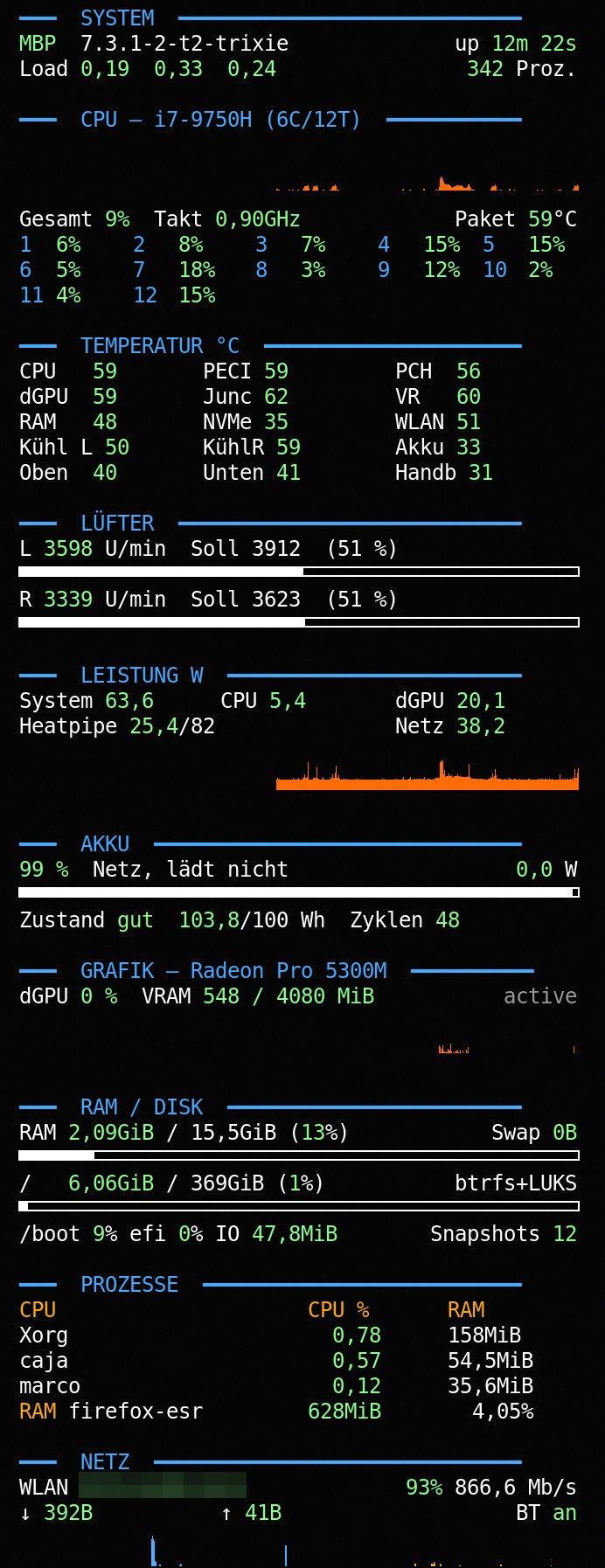
Packages: sudo apt install conky-all lm-sensors. The screen has 3072 × 1920 pixels and runs at double scaling. Conky then scales fonts and spacing itself; all values in the configuration are logical sizes. The configuration ~/.config/conky/conky.conf (labels and comments in German):
-- Conky für MacBook Pro 16,1 „MBP“ (Debian 13, T2-Kernel), angelegt 03.11.2026
-- Hinweis: Xft.dpi 192 (HiDPI ×2) - conky skaliert Schrift, Breiten und goto selbst, Angaben hier sind logisch
conky.config = {
    update_interval = 2,
    cpu_avg_samples = 2,
    net_avg_samples = 2,
    double_buffer = true,

    alignment = 'top_right',
    gap_x = 15,
    gap_y = 30,

    own_window = true,
    own_window_type = 'normal',
    own_window_hints = 'undecorated,below,sticky,skip_taskbar,skip_pager',
    own_window_argb_visual = true,
    own_window_argb_value = 0,

    font = 'DejaVu Sans Mono:size=9',
    default_color = 'white',
    color1 = '44aaff',
    color2 = 'ffaa00',
    color3 = '88ff88',
    color6 = '999999',

    minimum_width = 320,
    maximum_width = 320,
    draw_shades = false,
    draw_borders = false,
    draw_graph_borders = false,
    use_xft = true,
    default_bar_height = 5,

    lua_load = '~/.config/conky/conky.lua',
};

conky.text = [[
${color1}━━━  SYSTEM  ━━━━━━━━━━━━━━━━━━━━━━━━━━━━${color}
${color3}${nodename}${color}  ${kernel}${alignr}up ${color3}${uptime_short}${color}
Load ${color3}${loadavg 1}  ${loadavg 2}  ${loadavg 3}${color}${alignr}${color3}${processes}${color} Proz.

${color1}━━━  CPU - i7-9750H (6C/12T)  ━━━━━━━━━━━${color}
${cpugraph cpu0 28,320 1166ff ff6600}
Gesamt ${color3}${cpu cpu0}%${color}  Takt ${color3}${freq_g}GHz${color}${alignr}Paket ${lua_parse w pkg}°C
${color1}1${color}${goto 26}${color3}${cpu cpu1}%${color}${goto 70}${color1}2${color}${goto 96}${color3}${cpu cpu2}%${color}${goto 140}${color1}3${color}${goto 166}${color3}${cpu cpu3}%${color}${goto 210}${color1}4${color}${goto 236}${color3}${cpu cpu4}%${color}${goto 270}${color1}5${color}${goto 296}${color3}${cpu cpu5}%${color}
${color1}6${color}${goto 26}${color3}${cpu cpu6}%${color}${goto 70}${color1}7${color}${goto 96}${color3}${cpu cpu7}%${color}${goto 140}${color1}8${color}${goto 166}${color3}${cpu cpu8}%${color}${goto 210}${color1}9${color}${goto 236}${color3}${cpu cpu9}%${color}${goto 270}${color1}10${color}${goto 296}${color3}${cpu cpu10}%${color}
${color1}11${color}${goto 26}${color3}${cpu cpu11}%${color}${goto 70}${color1}12${color}${goto 96}${color3}${cpu cpu12}%${color}

${color1}━━━  TEMPERATUR °C  ━━━━━━━━━━━━━━━━━━━━━${color}
CPU   ${lua_parse w pkg}${goto 110}PECI ${lua_parse w peci}${goto 220}PCH  ${lua_parse w pch}
dGPU  ${lua_parse w gpu}${goto 110}Junc ${lua_parse w gpuj}${goto 220}VR   ${lua_parse w gpuvr}
RAM   ${lua_parse w mem}${goto 110}NVMe ${lua_parse w nvme}${goto 220}WLAN ${lua_parse w wlan}
Kühl L ${lua_parse w finl}${goto 110}KühlR ${lua_parse w finr}${goto 220}Akku ${lua_parse w akkut}
Oben  ${lua_parse w oben}${goto 110}Unten ${lua_parse w unten}${goto 220}Handb ${lua_parse w palm}

${color1}━━━  LÜFTER  ━━━━━━━━━━━━━━━━━━━━━━━━━━━━${color}
L ${lua_parse fan 0}
${lua_bar 5,320 fanproz 0}
R ${lua_parse fan 1}
${lua_bar 5,320 fanproz 1}

${color1}━━━  LEISTUNG W  ━━━━━━━━━━━━━━━━━━━━━━━━${color}
System ${lua_parse w p_sys}${goto 120}CPU ${lua_parse w p_cpu}${goto 220}dGPU ${lua_parse w p_gpu}
Heatpipe ${lua_parse w p_heat}/82${goto 220}Netz ${lua_parse w p_ac}
${lua_graph p_sys 24,320 1166ff ff6600 120}

${color1}━━━  AKKU  ━━━━━━━━━━━━━━━━━━━━━━━━━━━━━━${color}
${color3}${lua akku kap} %${color}  ${lua akku status}${alignr}${lua_parse w p_akku} W
${battery_bar 5,320 macsmc-battery}
Zustand ${color3}${lua akku health}${color}  ${color3}${lua akku voll}${color}/100 Wh  Zyklen ${color3}${lua akku zyklen}${color}

${color1}━━━  GRAFIK - Radeon Pro 5300M  ━━━━━━━━━━${color}
dGPU ${color3}${lua dgpu busy} %${color}  VRAM ${color3}${lua dgpu vram}${color}${alignr}${color6}${lua dgpu status}${color}
${lua_graph dgpu_busy 20,320 1166ff ff6600 100}

${color1}━━━  RAM / DISK  ━━━━━━━━━━━━━━━━━━━━━━━━${color}
RAM ${color3}${mem}${color} / ${memmax} (${lua_parse p ram}%)${alignr}Swap ${color3}${swap}${color}
${membar 5,320}
/   ${color3}${fs_used /}${color} / ${fs_size /} (${lua_parse p root}%)${alignr}btrfs+LUKS
${fs_bar 5,320 /}
/boot ${lua_parse p boot}% efi ${lua_parse p efi}% IO ${color3}${diskio /dev/nvme0n1}${color}${alignr}Snapshots ${color3}${execi 300 snapper -c root --csvout list --columns number 2>/dev/null | tail -n +3 | wc -l}${color}

${color1}━━━  PROZESSE  ━━━━━━━━━━━━━━━━━━━━━━━━━━${color}
${color2}CPU${color}${goto 170}${color2}CPU %${color}${goto 250}${color2}RAM${color}
${top name 1}${goto 170}${color3}${top cpu 1}${color}${goto 250}${top mem_res 1}
${top name 2}${goto 170}${color3}${top cpu 2}${color}${goto 250}${top mem_res 2}
${top name 3}${goto 170}${color3}${top cpu 3}${color}${goto 250}${top mem_res 3}
${color2}RAM${color} ${top_mem name 1}${goto 170}${color3}${top_mem mem_res 1}${color}${goto 250}${top_mem mem 1}%

${color1}━━━  NETZ  ━━━━━━━━━━━━━━━━━━━━━━━━━━━━━━${color}
${if_up wlp5s0}WLAN ${color3}${addr wlp5s0}${color}${alignr}${color3}${wireless_link_qual_perc wlp5s0}%${color} ${wireless_bitrate wlp5s0}
↓ ${color3}${downspeed wlp5s0}${color}${goto 120}↑ ${color3}${upspeed wlp5s0}${color}${alignr}BT ${color3}${execi 30 bluetoothctl show 2>/dev/null | awk '/Powered:/{print ($2=="yes")?"an":"aus"}'}${color}
${downspeedgraph wlp5s0 18,155 1166ff 44aaff}${goto 165}${upspeedgraph wlp5s0 18,155 ff6600 ffaa00}${else}WLAN ${color ff4040}getrennt${color}${alignr}BT ${color3}${execi 30 bluetoothctl show 2>/dev/null | awk '/Powered:/{print ($2=="yes")?"an":"aus"}'}${color}${endif}
]];
The Lua script ~/.config/conky/conky.lua:
-- Hilfsfunktionen für conky.conf (MacBook Pro 16,1 „MBP“, T2-Kernel)
-- Sensoren werden über hwmon-Namen und -Bezeichnungen gefunden, nicht über hwmon-Nummern,
-- damit die Anzeige nach Kernel-Updates oder anderer Ladereihenfolge weiter stimmt.
-- Farben: Werte ab Warn-/Kritisch-Schwelle gelb/rot.

local GELB, ROT, NORMAL = '${color ffd000}', '${color ff4040}', '${color3}'

local function lesen(pfad)
    local f = io.open(pfad, 'r')
    if not f then return nil end
    local s = f:read('*l')
    f:close()
    return s
end

-- Pfadcache: "name|label" -> Datei *_input
local cache = {}

local function hwmon_pfad(name, label)
    local key = name .. '|' .. label
    if cache[key] ~= nil then return cache[key] or nil end
    local p = io.popen('ls -d /sys/class/hwmon/hwmon* 2>/dev/null')
    local gefunden = false
    for h in p:lines() do
        if lesen(h .. '/name') == name then
            if label:match('^[a-z]+%d+$') then
                -- direkte Kanalangabe, z. B. temp1
                local f = h .. '/' .. label .. '_input'
                if lesen(f) then gefunden = f end
            else
                local q = io.popen('ls ' .. h .. '/*_label 2>/dev/null')
                for l in q:lines() do
                    if lesen(l) == label then
                        gefunden = l:gsub('_label$', '_input')
                        break
                    end
                end
                q:close()
            end
        end
        if gefunden then break end
    end
    p:close()
    cache[key] = gefunden
    return gefunden or nil
end

local function wert(name, label)
    local f = hwmon_pfad(name, label)
    if not f then return nil end
    local v = tonumber(lesen(f))
    if not v then cache[name .. '|' .. label] = nil end
    return v
end

-- Messgrößen: Kurzname -> { hwmon-Name, Label/Kanal, Teiler, Nachkommastellen, Warn, Kritisch }
local m = {
    -- Temperaturen in °C
    pkg    = { 'coretemp', 'Package id 0', 1000, 0, 85, 95 },
    peci   = { 'macsmc_hwmon', 'Max PECI Reported Temperature (TCMX)', 1000, 0, 85, 95 },
    gpu    = { 'amdgpu', 'edge', 1000, 0, 80, 90 },
    gpuj   = { 'amdgpu', 'junction', 1000, 0, 90, 100 },
    gpuvr  = { 'macsmc_hwmon', 'GPU VR Temperature (TGVP)', 1000, 0, 80, 90 },
    pch    = { 'macsmc_hwmon', 'PCH Die Cooked Temperature (TPCD)', 1000, 0, 75, 85 },
    mem    = { 'macsmc_hwmon', 'Memory Proximity Temperature (TM0P)', 1000, 0, 70, 80 },
    nvme   = { 'nvme', 'Composite', 1000, 0, 65, 75 },
    finl   = { 'macsmc_hwmon', 'Left Fin Stack Temperature (Th2H)', 1000, 0, 70, 80 },
    finr   = { 'macsmc_hwmon', 'Right Fin Stack Temperature (Th1H)', 1000, 0, 70, 80 },
    palm   = { 'macsmc_hwmon', 'Palm Rest Temperature (Ts0P)', 1000, 0, 38, 42 },
    unten  = { 'macsmc_hwmon', 'Synthetic Bottom Skin Temperature (Ts0S)', 1000, 0, 45, 50 },
    oben   = { 'macsmc_hwmon', 'Synthetic Top Skin Temperature (Ts1S)', 1000, 0, 45, 50 },
    akkut  = { 'macsmc_hwmon', 'Battery Temperature (TB0T)', 1000, 0, 40, 45 },
    wlan   = { 'macsmc_hwmon', 'Wireless Proximity Temperature (TW0P)', 1000, 0, 70, 80 },
    umgeb  = { 'macsmc_hwmon', 'Ambient Virtual Temperature (TA0V)', 1000, 0, 35, 40 },
    -- Lüfter in U/min
    f0     = { 'macsmc_hwmon', 'Fan 0', 1, 0 },
    f1     = { 'macsmc_hwmon', 'Fan 1', 1, 0 },
    -- Leistung in W (Sensoren liefern µW)
    p_sys  = { 'macsmc_hwmon', 'System Total, 1 s Delayed (PSTR)', 1e6, 1, 90, 120 },
    p_cpu  = { 'macsmc_hwmon', 'CPU High-Side Average (PC0R)', 1e6, 1, 60, 80 },
    p_gpu  = { 'macsmc_hwmon', 'GPU 0 Rail (PG0R)', 1e6, 1, 40, 60 },
    p_heat = { 'macsmc_hwmon', 'Heatpipe Average (PZ0G)', 1e6, 1, 75, 82 },
    p_ac   = { 'macsmc_ac', 'power1', 1e6, 1 },
    p_akku = { 'macsmc_battery', 'power1', 1e6, 1 },
}

local function zahl(k)
    local d = m[k]
    if not d then return nil end
    local v = wert(d[1], d[2])
    if not v then return nil end
    return v / d[3]
end

local function format(k, v)
    return string.format('%.' .. m[k][4] .. 'f', v)
end

-- Wert mit Warnfarbe
function conky_w(k)
    local v = zahl(k)
    if not v then return '${color6}-${color}' end
    local d = m[k]
    local farbe = NORMAL
    if d[6] and v >= d[6] then farbe = ROT elseif d[5] and v >= d[5] then farbe = GELB end
    return farbe .. format(k, v) .. '${color}'
end

-- reine Zahl (für Graphen/Balken)
function conky_n(k)
    return zahl(k) or 0
end

-- Lüfter: Ist / Soll in U/min und Anteil an der Höchstdrehzahl
local function luefter_dateien(nr)
    local f = hwmon_pfad('macsmc_hwmon', 'Fan ' .. nr)
    if not f then return nil end
    return f:gsub('_input$', '')
end

function conky_fan(nr)
    local b = luefter_dateien(nr)
    if not b then return '${color6}-${color}' end
    local ist = tonumber(lesen(b .. '_input')) or 0
    local soll = tonumber(lesen(b .. '_target')) or 0
    local min = tonumber(lesen(b .. '_min')) or 0
    local max = tonumber(lesen(b .. '_max')) or 1
    local proz = math.floor((ist - min) * 100 / math.max(1, max - min) + 0.5)
    if proz < 0 then proz = 0 end
    return string.format('%s%d${color} U/min  Soll %d  (%d %%)', NORMAL, ist, soll, proz)
end

function conky_fanproz(nr)
    local b = luefter_dateien(nr)
    if not b then return 0 end
    local ist = tonumber(lesen(b .. '_input')) or 0
    local min = tonumber(lesen(b .. '_min')) or 0
    local max = tonumber(lesen(b .. '_max')) or 1
    local p = (ist - min) * 100 / math.max(1, max - min)
    if p < 0 then p = 0 elseif p > 100 then p = 100 end
    return p
end

-- Akku aus /sys/class/power_supply
local AKKU = '/sys/class/power_supply/macsmc-battery/'

function conky_akku(feld)
    if feld == 'kap' then
        return lesen(AKKU .. 'capacity') or '?'
    elseif feld == 'status' then
        local s = lesen(AKKU .. 'status') or '?'
        local de = { ['Charging'] = 'lädt', ['Discharging'] = 'entlädt', ['Full'] = 'voll',
                     ['Not charging'] = 'Netz, lädt nicht' }
        return de[s] or s
    elseif feld == 'zyklen' then
        return lesen(AKKU .. 'cycle_count') or '?'
    elseif feld == 'voll' then
        -- Ist-Kapazität in Wh (Herstellerwert liefert der SMC-Treiber nicht; Neuwert A2141: 100 Wh)
        local voll = tonumber(lesen(AKKU .. 'energy_full'))
        if voll then return string.format('%.1f', voll / 1e6) end
        return '?'
    elseif feld == 'health' then
        local h = lesen(AKKU .. 'health') or '?'
        local de = { ['Good'] = 'gut', ['Overheat'] = 'überhitzt', ['Dead'] = 'defekt' }
        return de[h] or h
    elseif feld == 'grenze' then
        return lesen(AKKU .. 'charge_control_end_threshold') or '?'
    end
    return '?'
end

-- AMD-GPU (dGPU): Auslastung und Grafikspeicher
local function amdgpu_dir()
    local p = io.popen('ls -d /sys/class/drm/card? 2>/dev/null')
    local d
    for c in p:lines() do
        local t = io.popen('readlink ' .. c .. '/device/driver 2>/dev/null')
        local drv = t:read('*l') or ''
        t:close()
        if drv:match('amdgpu$') then d = c .. '/device/' break end
    end
    p:close()
    return d
end
local AMD = amdgpu_dir()

function conky_dgpu(feld)
    if not AMD then return '-' end
    if feld == 'busy' then
        return lesen(AMD .. 'gpu_busy_percent') or '?'
    elseif feld == 'vram' then
        local u = tonumber(lesen(AMD .. 'mem_info_vram_used'))
        local t = tonumber(lesen(AMD .. 'mem_info_vram_total'))
        if u and t then return string.format('%d / %d MiB', u // 1048576, t // 1048576) end
        return '?'
    elseif feld == 'status' then
        return lesen(AMD .. 'power/runtime_status') or '?'
    end
    return '?'
end

function conky_dgpu_busy()
    if not AMD then return 0 end
    return tonumber(lesen(AMD .. 'gpu_busy_percent')) or 0
end

-- Warnfarbe für Prozentwerte aus conky selbst (RAM, Dateisysteme)
local prozent = {
    ram  = { '${memperc}', 85, 95 },
    root = { '${fs_used_perc /}', 85, 95 },
    boot = { '${fs_used_perc /boot}', 80, 90 },
    efi  = { '${fs_used_perc /boot/efi}', 80, 90 },
}

function conky_p(k)
    local d = prozent[k]
    if not d then return '?' end
    local roh = conky_parse(d[1])
    local v = tonumber(roh)
    local farbe = NORMAL
    if v and v >= d[3] then farbe = ROT elseif v and v >= d[2] then farbe = GELB end
    return farbe .. roh .. '${color}'
end

-- für lua_graph (Funktion ohne Argument)
function conky_p_sys()
    return zahl('p_sys') or 0
end
So that Conky only starts after login once the SMC driver is loaded, a small start script /usr/local/bin/conky-autostart (make it executable) waits for it:
#!/bin/bash
# Startet conky nach der Anmeldung, sobald der SMC-Sensortreiber macsmc_hwmon geladen ist (max. 90 s warten)
pgrep -u "$USER" -x conky >/dev/null && exit 0
for i in $(seq 90); do
    grep -qx macsmc_hwmon /sys/class/hwmon/hwmon*/name 2>/dev/null && break
    sleep 1
done
exec conky -c "$HOME/.config/conky/conky.conf"
It is registered in ~/.config/autostart/conky.desktop:
[Desktop Entry]
Type=Application
Name=Conky
Comment=Systemanzeige auf dem Desktop
Exec=/usr/local/bin/conky-autostart
Icon=conky-logomark-violet
X-MATE-Autostart-enabled=true
X-MATE-Autostart-Delay=5
NoDisplay=false
Dark MATE, wallpaper and boot screen
In MATE, dark mode for your own session is set with gsettings. The second line changes the window manager theme, the last two apply to GTK 4 and GNOME applications:
gsettings set org.mate.interface gtk-theme BlackMATE
gsettings set org.mate.Marco.general theme BlackMATE
gsettings set org.gnome.desktop.interface color-scheme prefer-dark
gsettings set org.gnome.desktop.interface gtk-theme Adwaita-dark
As wallpaper I drew a motif that suits this device: a dark grey apple with the red Debian swirl inside, on an almost black background. It sits at 30 % of the image width, so it covers neither the login box in the middle nor Conky on the right. The Apple logo is a protected trademark, so the image file is not available for download here.
A tip for your own dark wallpapers: very dark gradients show visible rings in 8 bit because there are only a few brightness levels. A fine noise of about one level on top, called dithering, smooths them out without being visible.
The login screen gets the same image and theme, in /etc/lightdm/lightdm-gtk-greeter.conf under [greeter]:
background=/usr/share/backgrounds/mbp-apfel/mbp-apfel-3072x1920.png
theme-name=BlackMATE
icon-theme-name=menta
user-background=false
For the boot screen I wrote my own Plymouth theme. The password prompt for the encryption sits at the top, and the boot messages run across the full width below the logo. If you want to see all messages, press Escape. The dots stay inside the field: once it is full, no more are added, so a long password does not reveal its length.
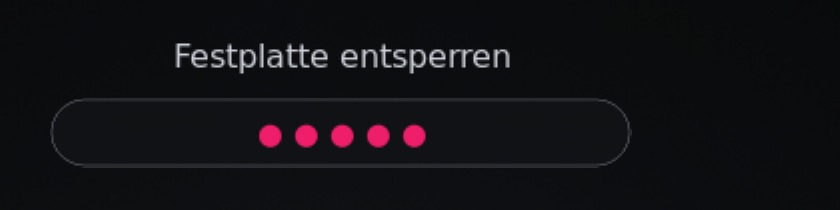
The theme lives in /usr/share/plymouth/themes/mbp-apfel/. It also needs a background image hintergrund.png at screen size and the input field feld.png (880 × 108 pixels, rounded, semi-transparent). Description mbp-apfel.plymouth:
[Plymouth Theme]
Name=MBP Apfel
Description=Apfel mit Debian-Swirl auf fast schwarz, mit Startmeldungen
ModuleName=script

[script]
ImageDir=/usr/share/plymouth/themes/mbp-apfel
ScriptFile=/usr/share/plymouth/themes/mbp-apfel/mbp-apfel.script
The script mbp-apfel.script (comments and texts in German):
# MBP Apfel - Plymouth-Theme (03.11.2026, v4)
# Hintergrund wie der Desktop; Startmeldungen unter dem Apfel über die ganze Breite;
# Passwortabfrage oben über dem Apfel in einem Eingabefeld.
# Esc schaltet jederzeit auf die vollständige Textausgabe um.

Window.SetBackgroundTopColor(0.02, 0.02, 0.024);
Window.SetBackgroundBottomColor(0.02, 0.02, 0.024);

sw = Window.GetWidth();
sh = Window.GetHeight();
wx = Window.GetX();
wy = Window.GetY();

bild = Image("hintergrund.png");
hg = Sprite(bild.Scale(sw, sh));
hg.SetPosition(wx, wy, -100);

# --- Startmeldungen: unter dem Apfel, volle Breite ---
schrift = "DejaVu Sans Mono 10";
anzahl = 11;
zeilenhoehe = Image.Text("Mg", 1, 1, 1, 1, schrift).GetHeight() + 4;
x0 = wx + sw * 0.04;
maxbreite = sw * 0.92;
y_oben = wy + sh * 0.95 - anzahl * zeilenhoehe;   # Block endet 5 % über dem Rand
if (y_oben < wy + sh * 0.70) y_oben = wy + sh * 0.70;   # nie in den Apfel
zeichenbreite = Image.Text("MMMMMMMMMM", 1, 1, 1, 1, schrift).GetWidth() / 10;
maxzeichen = Math.Int(maxbreite / zeichenbreite);

i = 0;
while (i < anzahl) {
    zeile[i] = "";
    zsprite[i] = Sprite();
    zsprite[i].SetPosition(x0, y_oben + i * zeilenhoehe, 10);
    i++;
}

fun kuerzen(text) {
    if (text.CharAt(maxzeichen) == "") return text;
    return text.SubString(0, maxzeichen - 1) + "…";
}

fun neu_zeichnen() {
    j = 0;
    while (j < anzahl) {
        hell = 0.32 + 0.60 * (j / (anzahl - 1));
        if (zeile[j] != "")
            zsprite[j].SetImage(Image.Text(zeile[j], hell, hell, hell * 1.06, 1, schrift));
        j++;
    }
}

fun meldung(text) {
    if (text == "") return;
    k = 0;
    while (k < anzahl - 1) {
        zeile[k] = zeile[k + 1];
        k++;
    }
    zeile[anzahl - 1] = kuerzen(text);
    neu_zeichnen();
}

fun status_cb(status) { meldung(status); }
Plymouth.SetUpdateStatusFunction(status_cb);

fun message_cb(text) { meldung(text); }
Plymouth.SetMessageFunction(message_cb);

# --- Passwortabfrage (LUKS) oben, auf der Achse des Apfels ---
logo_x = wx + sw * 0.30;
feld_b = sw * 0.19;
feld_h = feld_b * 108 / 880;
feld_bild = Image("feld.png").Scale(feld_b, feld_h);
titel_bild = Image.Text("Festplatte entsperren", 0.80, 0.81, 0.85, 1, "DejaVu Sans 12");
titel_y = wy + sh * 0.10;
feld_y = titel_y + titel_bild.GetHeight() + sh * 0.012;

pw_titel = Sprite(titel_bild);
pw_titel.SetPosition(logo_x - titel_bild.GetWidth() / 2, titel_y, 20);
pw_feld = Sprite(feld_bild);
pw_feld.SetPosition(logo_x - feld_b / 2, feld_y, 20);
pw_punkte = Sprite();
pw_titel.SetOpacity(0);
pw_feld.SetOpacity(0);
pw_punkte.SetOpacity(0);

# höchstens so viele Punkte, wie mit Innenabstand ins Feld passen
punktbreite = Image.Text("● ", 1, 1, 1, 1, "DejaVu Sans 11").GetWidth();
maxpunkte = Math.Int((feld_b - feld_h * 1.2) / punktbreite);

fun passwort_cb(prompt, bullets) {
    s = "";
    b = 0;
    while (b < bullets && b < maxpunkte) {
        if (s == "") s = "●"; else s = s + " ●";
        b++;
    }
    if (s == "") {
        p = Image.Text("Passwort eingeben", 0.45, 0.46, 0.50, 1, "DejaVu Sans 11");
    } else {
        p = Image.Text(s, 0.93, 0.12, 0.42, 1, "DejaVu Sans 11");
    }
    pw_punkte.SetImage(p);
    pw_punkte.SetPosition(logo_x - p.GetWidth() / 2, feld_y + (feld_h - p.GetHeight()) / 2, 21);
    pw_titel.SetOpacity(1);
    pw_feld.SetOpacity(1);
    pw_punkte.SetOpacity(1);
}
Plymouth.SetDisplayPasswordFunction(passwort_cb);

fun normal_cb() {
    pw_titel.SetOpacity(0);
    pw_feld.SetOpacity(0);
    pw_punkte.SetOpacity(0);
}
Plymouth.SetDisplayNormalFunction(normal_cb);
sudo apt install plymouth plymouth-label
sudo plymouth-set-default-theme mbp-apfel
sudo update-initramfs -uTo try it without rebooting there is the package plymouth-x11. Plymouth then shows the theme in a window. The window is not exactly the size of the screen, though, so only a real boot shows the exact layout.
Finally the keyboard backlight: it was off at the password prompt because the system only switches it back on after booting. This script in /etc/initramfs-tools/scripts/init-premount/tastaturlicht (executable, then update-initramfs -u) sets it to half brightness beforehand:
#!/bin/sh
# Tastaturbeleuchtung vor der LUKS-Abfrage einschalten (MacBookPro16,1, T2) - 03.11.2026
PREREQ=""
prereqs() { echo "$PREREQ"; }
case "$1" in prereqs) prereqs; exit 0;; esac
i=0
while [ $i -lt 30 ]; do
    for l in /sys/class/leds/*kbd_backlight; do
        if [ -w "$l/brightness" ]; then
            echo $(( $(cat "$l/max_brightness") / 2 )) > "$l/brightness"
            exit 0
        fi
    done
    sleep 0.1; i=$((i + 1))
done
exit 0
The result
A device that only showed up as Billboard on USB has become a working machine: macOS for firmware updates, Debian 13 for everything else, the disk encrypted, with snapshots, fan control and a battery that stops at 85 % on the adapter.
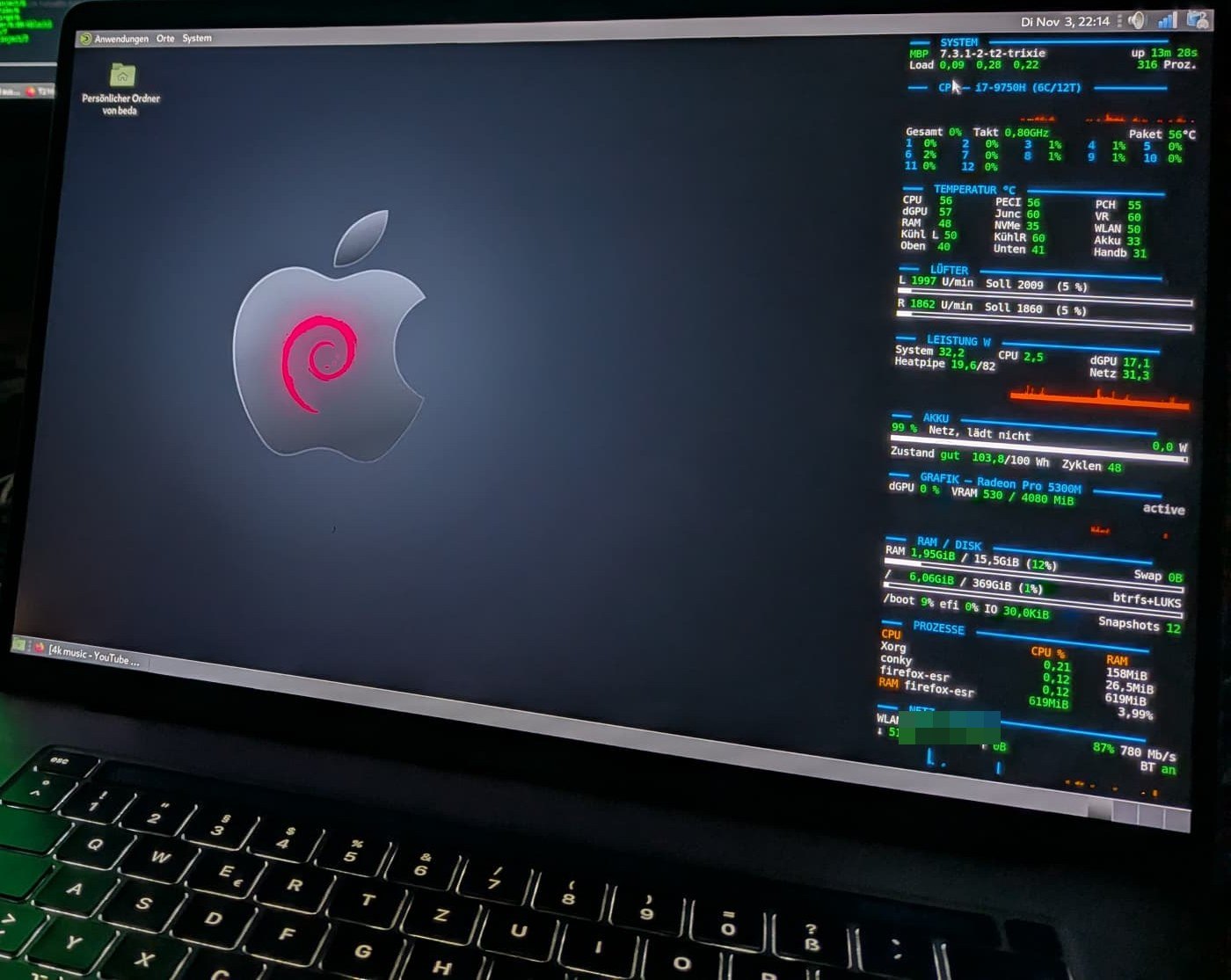
Three things are still open for me: switching to the Intel graphics, the Touch Bar in Linux mode and a thorough test of suspend and Touch ID. If you have solved these on a MacBookPro16,1, feel free to get in touch.
Numbers at a glance
- The 16-inch MacBook Pro from 2019 has model number A2141, internally MacBookPro16,1; the T2 identifies as iBridge2,14 (j152fap).
- idevicerestore from Debian 13 (July 2024) fails on bridgeOS 11 at the ASR command "Initiate"; the Git version of 3 November 2026 (ae8cfb4) installed bridgeOS 11.0 (24P6005) successfully.
- The BCM4364 Wi-Fi and Bluetooth chip needs firmware from macOS; after renaming with firmware.sh there are 148 files.
- Kernel 7.3.1 from the t2-ubuntu-repo brings drivers for keyboard, trackpad, Touch Bar, T2 audio and the SMC with 43 temperature sensors and 2 fans.
- At idle on AC the device draws about 33 W, of which the AMD Radeon Pro 5300M alone accounts for about 17 W.
References
- t2linux wiki: Linux on T2 Macs
- t2linux wiki: installing Debian
- t2linux wiki: Wi-Fi and Bluetooth
- t2linux wiki: hybrid graphics
- t2-ubuntu-repo: packages for Debian and Ubuntu
- libimobiledevice: idevicerestore
- Apple: Revive or restore Mac firmware
- Apple: Identify the DFU port on Mac
- TLP: power management for Linux
- Own post: KAC, a small cube as a status display
Remarks
- My SoftwareSklave (German for “software slave”), an AI assistant working on the machines via SSH, helped me with the setup. Every step was backed up beforehand and documented with a way back. The files in this post are the ones running on the device; I have condensed some commands for rebuilding.
- The t2linux wiki and the t2-ubuntu-repo are community projects. Versions, package names and kernel parameters change; when in doubt, the current state there applies.
Links to the original source and the Web Archive open in a new tab.